In this post I demonstrate how to create a new connection to a locally running PostgreSQL database using the PostgreSQL. VS Code extension from Microsoft.
For this example the following versions were used: VS Code 1.88.1, PostgreSQL VS Code Extension 0.3.0 PostgreSQL 16 Database running locally, pgAdmin 4 Version 8.2.
After installing the extension, open the Command Palette and type post and then Select PostgreSQL: New Query
Select Create Connection Profile
For the Server name enter localhost
The next step is to enter the Database name.
In this example I used mydb. The database name can be found under the Databases node within the pgAdmin tool
Next enter the User name
Followed by the Password
Next, enter the Port
The pgAdmin tool can be used to find the Port. Right click on the PostgreSQL 16 node and select Properties
Then select the Connection tab which shows the Port
The final step is to provide a name for the profile
Once the final step has been completed you should see a message display on the bottom right of VS Code
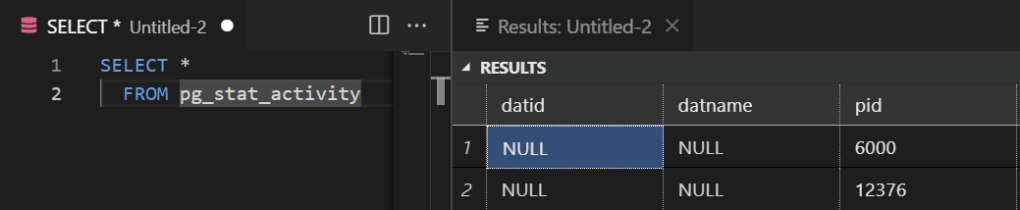
Test the connection by executing a SQL statement.
SELECT *
  FROM pg_stat_activity
Right-click, select ‘Execute Query’ and the results will be shown in a new window.








 iancarpenter.dev