Building on the previous auto-refresh report example, this post shows how to let users change the interval when a report will be automatically refreshed.
Prerequisites
The example shown was built using Apex version 24.1.3.
Goal
This chart should automatically refresh every X seconds dependent on the value of the Refresh Interval Select List.

Step 1 New Page Items
Two new page items are required. The first is a select list of refresh intervals. The other is the refresh interval id used to store a reference to the current interval object. This last item is shown in the screen shot above but would be hidden in production applications.
The select list is named P38_INTERVAL and contains several static values for 10, 30 and 60 seconds as shown below.

Whilst the user sees values in seconds, the return values use milliseconds for compatibility with the call to the setInterval function which is performed in both the new Dynamic Actions (described in Steps 2 and 3 below).
The second page item is a text field named P38_REFRESH_INTERVAL_ID.
Step 2 Page Load Dynamic Action
Create a new Dynamic Action and set the True action to Execute JavaScript Code.
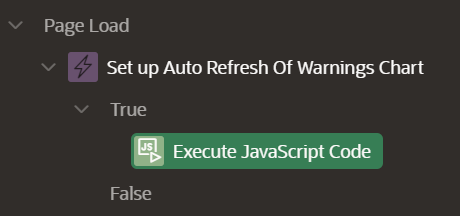
Copy and paste the code below
function startRefreshInterval() {
  var interval = apex.item('P38_INTERVAL').getValue();

  // Set the new interval
  refreshIntervalID = setInterval(function() {
    // Refresh the region
    apex.region("Warnings_Chart").refresh();
  }, interval);

  // set the page item with the id returned by the call
  // this is used by the change event
  apex.item('P38_REFRESH_INTERVAL_ID').setValue(refreshIntervalID);

}

// Initial call to set the interval when the page loads
startRefreshInterval();
When the page loads, the Dynamic Action retrieves the value from the P38_INTERVAL Select List and uses the value as the delay parameter in the call to the setInterval function. The intervalID returned from the call to setInterval is stored in the page item P38_REFRESH_INTERVAL_ID.
Step 3 Change Dynamic Action
Create another Dynamic Action and set the True action to Execute JavaScript Code.
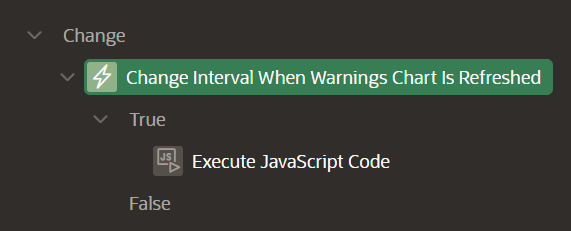
Configure the Dynamic Action to trigger when the Select list created in Step 1 changes by setting the properties shown within the red border.

Copy and paste the code below
function changeRefreshInterval() {

  // cancel the existing setInterval instance using the value stored in page item.
  clearInterval(apex.item('P38_REFRESH_INTERVAL_ID').getValue());

  // Get the new interval value
  var interval = apex.item('P38_INTERVAL').getValue();

  // Set the new interval
  refreshIntervalID = setInterval(function() {
    // Refresh the region
    apex.region("Warnings_Chart").refresh();
  }, interval);

  // update the page item with the current refresh interval id
  apex.item('P38_REFRESH_INTERVAL_ID').setValue(refreshIntervalID);

}

// call the function whenever the interval is changed
changeRefreshInterval();
This function stops the current automatic refresh of the region, then creates a new refresh interval based on the Select list value. The final steps is to update P38_REFRESH_INTERVAL_ID with the current refresh interval ID.
Step 4 Test
The final step is to run the page and test the various options to ensure the difference in refresh intervals works as expected.
 iancarpenter.dev